For authors
Selling ebooks: setting up Stripe, step by step
LocalBooks doesn’t handle your readers’ cards itself. Stripe does: it’s the payment company behind many online shops. When a reader buys your ebook, the money goes into your own Stripe account, and Stripe sends it to your bank. Setting up takes about 15 minutes and is free.
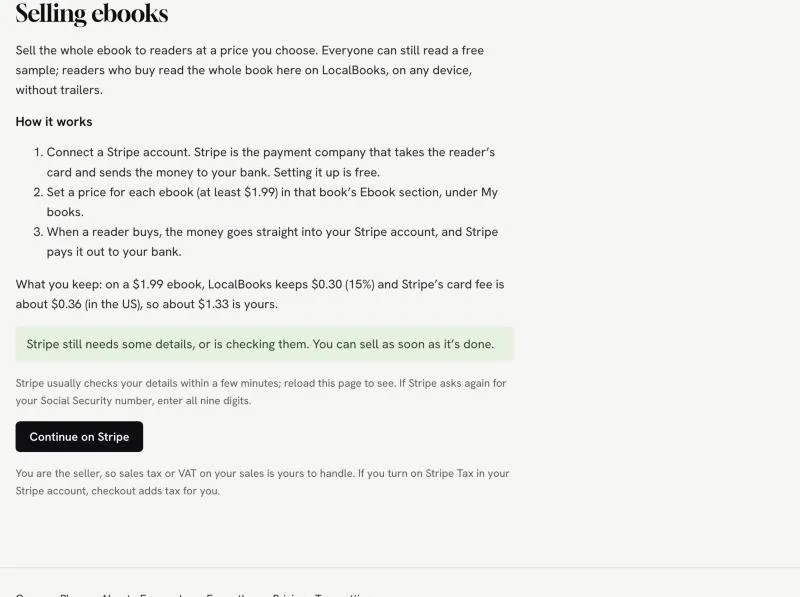
What you keep: on a $1.99 ebook, LocalBooks keeps $0.30 (15%) and Stripe’s card fee is about $0.36 (in the US), so about $1.33 is yours.
Have these ready (about 15 minutes)
- Your legal name, date of birth and home address
- Your Social Security number (in the US) or your country’s tax ID number. Stripe needs it by law before it can pay you.
- Your bank’s routing number and your account number
- Your mobile phone: Stripe texts you a code to protect your account
Start on LocalBooks
- Go to My books › Earnings.
- Under “Selling ebooks”, choose the country where you (or your business) are based. Choose carefully: Stripe can’t change it later.
- Click “Connect Stripe”. Stripe’s site opens.
The menu at the bottom left of Stripe’s pages (“English (US)”) switches Stripe to your language.
On Stripe’s site
The pictures come from Stripe’s test mode, so some words (like “included in test mode”) will look different for you.
1. Your email
Your LocalBooks email is already filled in. If you already have a Stripe account, you can use its email and sign in instead. Click “Continue”.
2. A password
Choose a password of at least 10 characters (or click “Sign in with Google”). Click “Submit”.
3. Two-step sign-in: choose text messages
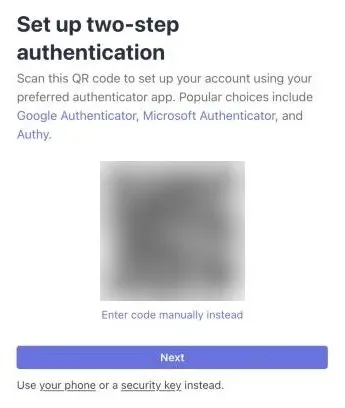
Stripe first shows a QR code for an authenticator app. If you don’t use one, don’t scan anything: click the small “your phone” link at the bottom (“Use your phone or a security key instead”).
4. Your mobile number and the code
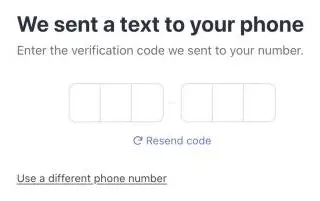
Enter your mobile number and click “Send text”, then type the 6-digit code from the text message.
5. Save your backup code
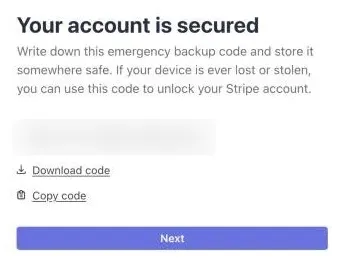
Click “Download code” or “Copy code” and keep it somewhere safe. It’s the only way back into your Stripe account if you lose your phone. Click “Next”.
6. Location and business type
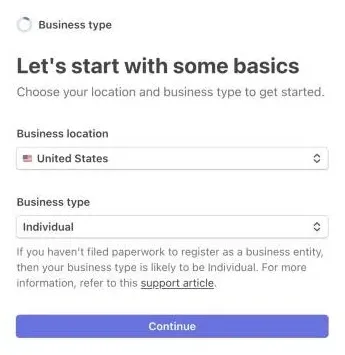
Business location: your country. Business type: “Individual” (unless you’ve registered a company for your writing). Click “Continue”.
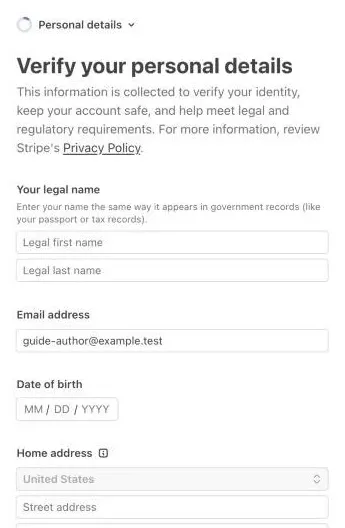
7. Your personal details
Your legal name (as on your tax records), date of birth, home address, phone and the last 4 digits of your Social Security number. Stripe uses these to check who you are; readers don’t see them. Click “Continue”.
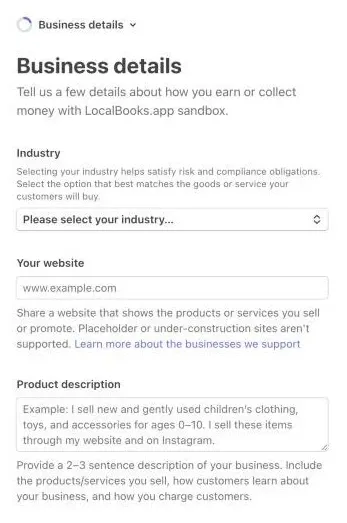
8. Business details
LocalBooks fills in most of this for you. If anything is empty: industry “Digital products”, then “Books”; your website is your LocalBooks author page (My books › Author profiles); and a short description, such as “I’m an author and I sell my ebooks on LocalBooks.app.” Click “Continue”.
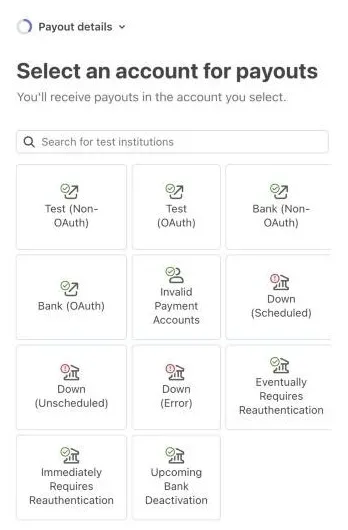
9. Your bank account
Search for your bank and sign in to it, or choose to enter your routing and account numbers yourself. If Stripe shows several accounts, tick only the one you want to be paid into. Saving your details with Link is optional: “Finish without saving” is fine.
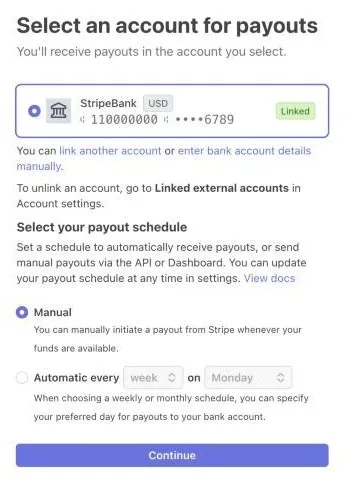
10. Payouts: keep “Automatic”
Make sure “Automatic” is selected. LocalBooks sets it to every week; if Stripe shows “Manual”, change it, or your money stays in Stripe until you log in and send it to your bank yourself.
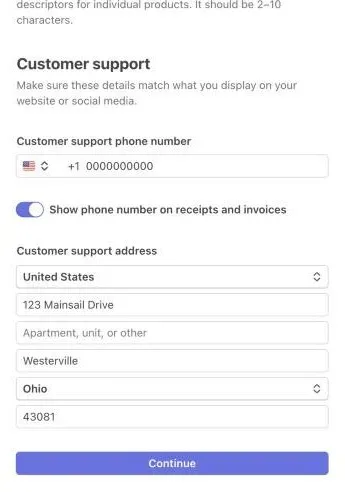
11. What readers see on their receipts
Keep LOCALBOOKS.APP as the statement descriptor, so readers recognize the charge on their card statement. Stripe copies your personal phone number and home address in as customer support details, and readers who buy can see them. Switch off “Show phone number on receipts” if you don’t want readers to have your number, and use a business address or PO box if you’d rather not share your home address.
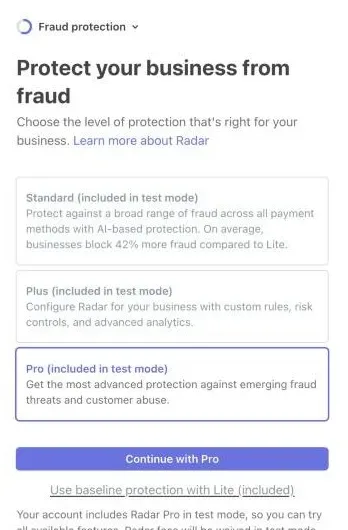
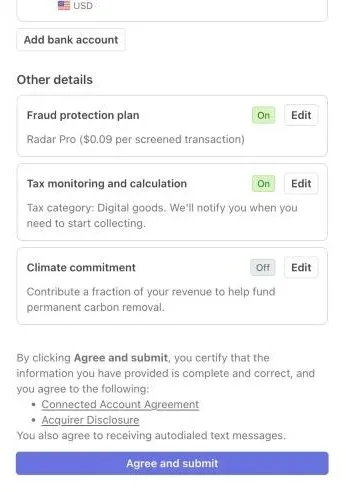
12. Fraud protection: choose Lite (free)
Stripe offers paid fraud protection (Standard, Plus, Pro) that charges a fee on every sale. If you can, click “Use baseline protection with Lite (included)”, which is free. If Stripe puts you on a paid plan anyway, switch to Lite afterwards (see the end of this page).
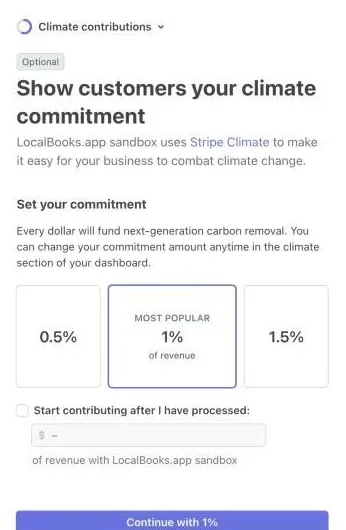
13. Climate contribution (optional)
Stripe pre-selects 1% of your revenue for carbon removal. If you don’t want to give that, click “No thanks” under the big button.
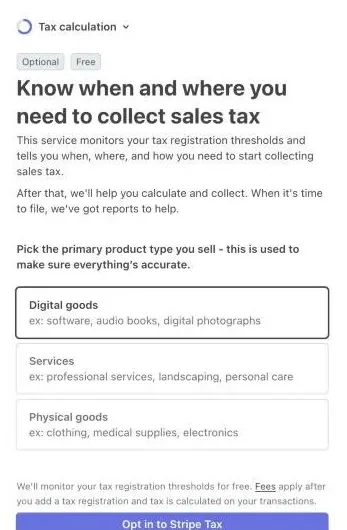
14. Sales tax (optional, free to watch)
Choose “Digital goods” and click “Opt in to Stripe Tax”. Stripe watches your sales for free and tells you if you need to register for sales tax somewhere. Once you register, LocalBooks’ checkout adds the tax for you.
15. Review and submit
Check everything: “Payout details” should show your bank, and “Climate commitment” should say “Off” unless you chose it. Click “Agree and submit”.
Back on LocalBooks
Stripe sends you back to Earnings. It usually needs a few minutes to check your details: reload the page until it says “Stripe is connected”.
Still checking after 10 minutes? Click “Continue on Stripe”. Stripe sometimes asks for your full Social Security number at this point. Enter all nine digits and submit.
Last step: set your prices
Go to My books, open a book, and in its Ebook section enter a price (at least $1.99). Click “Save price”. The “Buy the ebook” button appears on your book’s page and where the free sample ends.
After setup: check your fraud plan
Open Stripe’s Radar plans page (sign in to Stripe if it asks) and choose “Radar Lite”, which is free. Paid plans add a fee to every sale, which matters on books that cost a few dollars.
Stripe › Settings › Plans and fees › Radar →